What works
| Square | Works | Doesn't work |
|---|---|---|
| Register | Any mode, on iPad, Android or Square Register | |
| KDS | One screen set to Expo | Only Prep screens |
| Order types | Order tracking on (step 1) | Order tracking off |
| Customers called by | Name, or Square's ticket number |
Expo and Prep screens
Expo
Sees every order. Bump a ticket here and the name moves to Ready on the TV. If you have one KDS screen, it's usually Expo.Prep
Sees only its own station's items, like drinks or food. A bump here doesn't change the TV. If you use Prep screens, add one Expo screen.To check a screen, go to Settings → General → Display type on the KDS.
Set it up once
About 10 minutes.
- Turn on order tracking. In the Square Dashboard, go to Settings → Account & settings → Fulfillment methods → Point of sale. For each order type you use (For Here, To Go, Pick Up and any others), click Edit, turn on Enable order tracking for this fulfillment method, and click Save.
Without it, Square closes each order when it's paid, and the bump can't reach the TV.
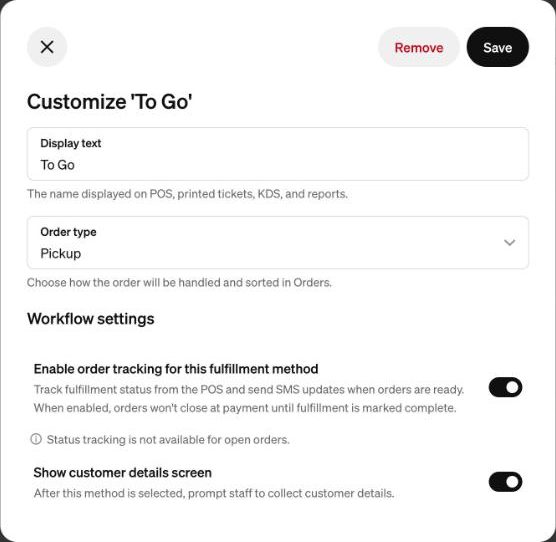
The switch to turn on. This one is To Go. 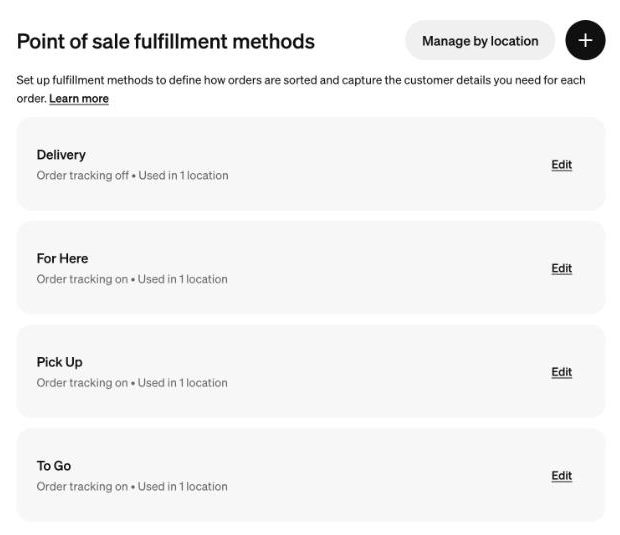
Done: each order type says Order tracking on. - Restart Square on every register. Close Square Point of Sale and open it again. The register only loads the new setting when it starts.
- Check one KDS setting. In the Square Dashboard, go to Settings → Device management → Kitchen displays. Make sure Automatically send order updates is on. It's on unless someone turned it off.
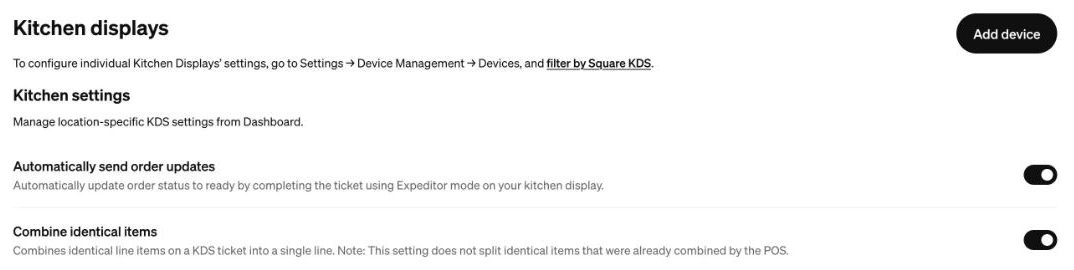
Automatically send order updates: on. - Connect Pickup Signal. In your Pickup Signal dashboard, go to Order sources → Connect Square and sign in to Square. Then set up your TV (TV setup).
- Optional: call numbers instead of names. If you don't take names, have Square number each order. In the Square Dashboard, go to Settings → Device management → Modes → your register's mode → Checkout → Order tickets → Auto-assign ticket numbers. The TV shows the number from the receipt: Order #01 shows as #1. To set the highest number or restart the count each day, go to Account & settings → Order tickets.
Test it
Takes 5 minutes. Keep the TV in view.
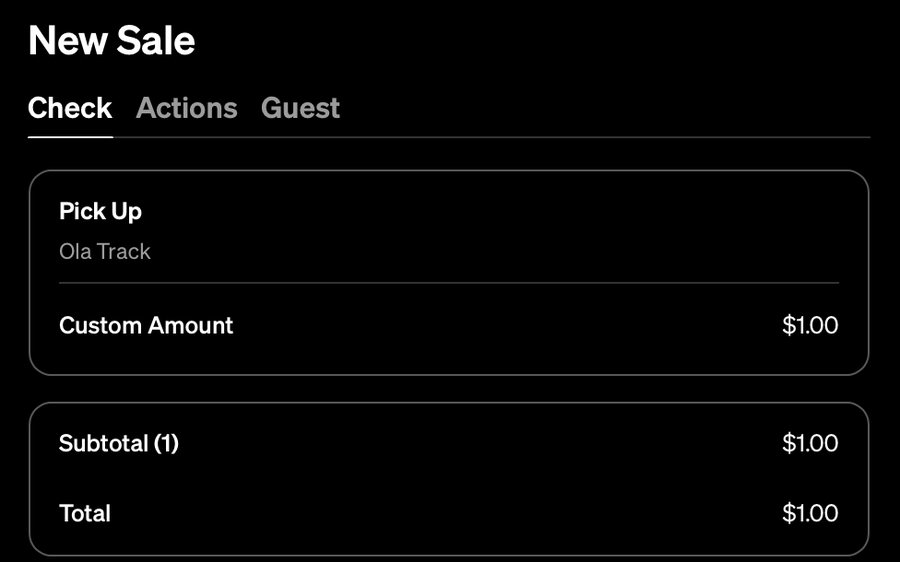
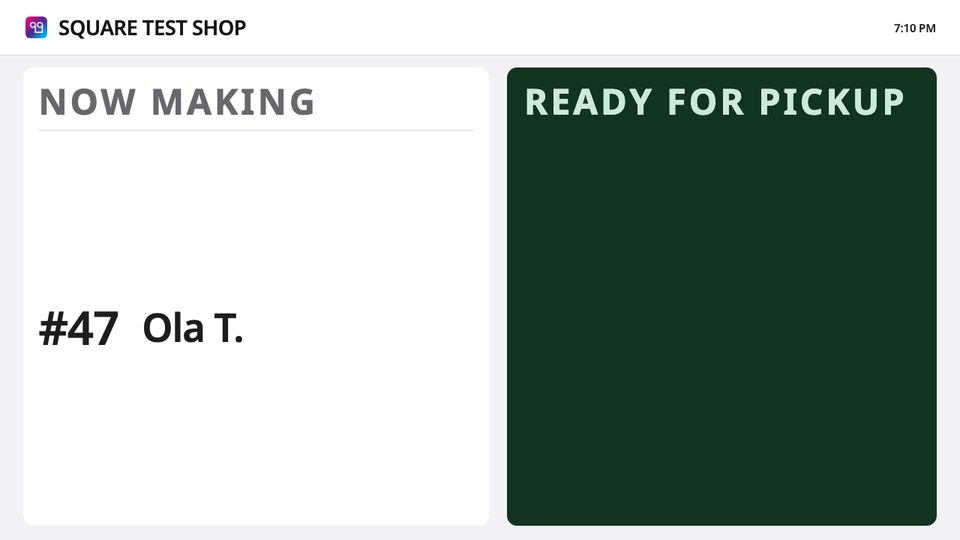
- Ring up a $1 To Go order for Test One and pay cash. It appears under Now Making.
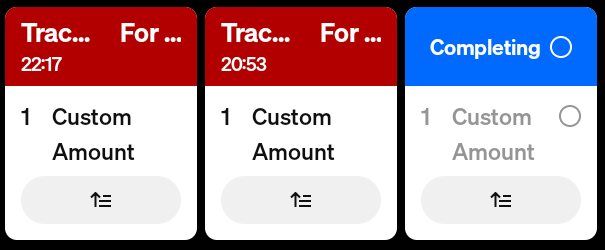
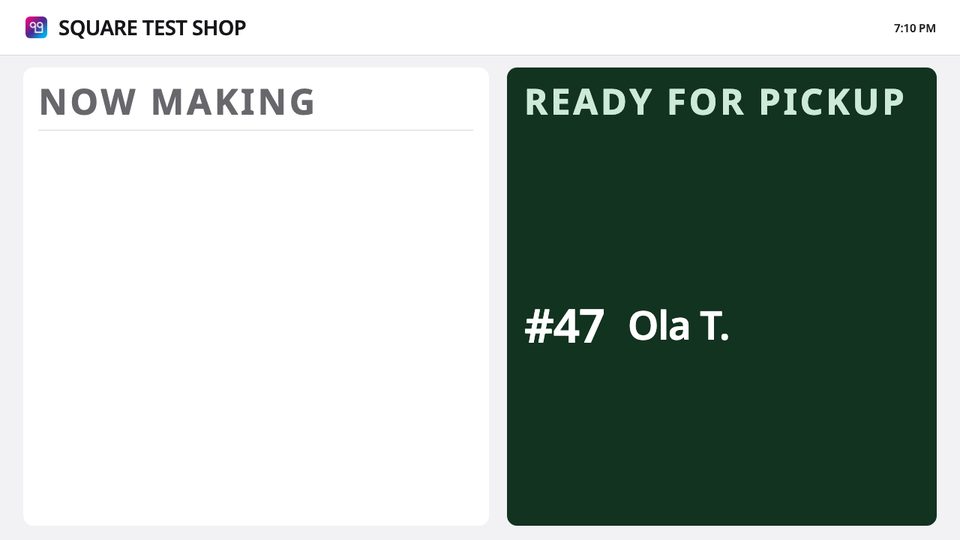
- Bump the ticket on the Expo KDS. In about 10 seconds it moves to Ready for Pickup.
- Clear it (three ways). It leaves the TV.
- Refund the $1 in Square.
Every order
| Step | Who | On the TV |
|---|---|---|
| 1. Ring up and take payment as usual. Pick the order type and enter the customer's name. Square asks for it on the order type screen or when you tap Charge. | Cashier | Under Now Making in about 5 seconds, as first name and last initial (or the ticket number) |
| 2. Bump the ticket on the Expo KDS by tapping its top. You have 3 seconds to undo. | Kitchen | Moves to Ready for Pickup in about 10 seconds |
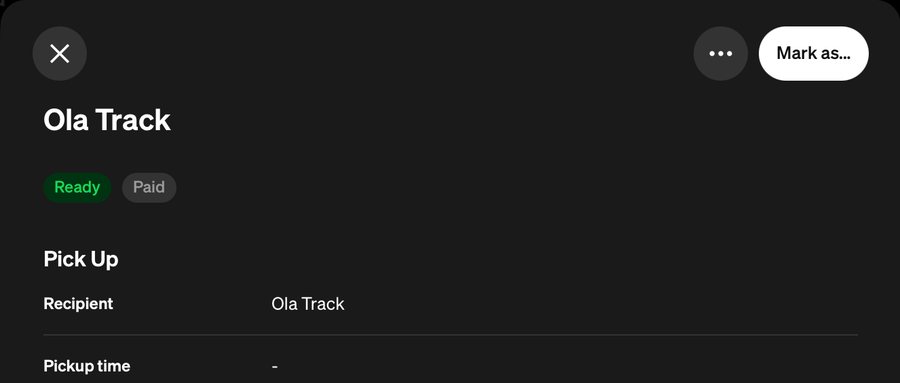
| 3. Hand over the order and clear the name (three ways below). | Counter | Leaves the TV |
Three ways to clear a name
| Way | How | Use it when |
|---|---|---|
| Register | Orders → the order → Mark as… → Picked up. This also closes the order in Square. | You hand off at the register |
| Pickup Signal app | Tap Picked up next to the name. You have a few seconds to undo. More below. | You hand off away from the register |
| Timer | Do nothing. After 10 minutes on Ready, the name changes to Please see staff. After 15 minutes it leaves the TV. Change these times in Pickup Signal settings → Queue cleanup. | To catch names nobody cleared |
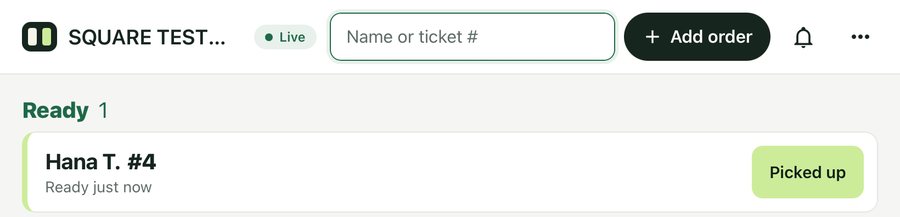
The Pickup Signal staff app
The KDS moves names to Ready, but someone still has to clear each name when the customer picks up. On the register, that's four taps on the cashier's screen. Our staff app makes it one tap at the pickup counter. It's included with your plan.
- Every Ready order is on one screen, each with a Picked up button.
- The cashier keeps ringing up while someone else hands off orders.
- Orders nobody has picked up are marked Please see staff, so you know who to call.
- Staff don't need their own logins.
To set it up:
- On the iPad or iPhone, get Pickup Signal from the App Store (Download on the App Store). It needs iOS 16.4 or later.
- Open the app. It shows a code. In your Pickup Signal dashboard, go to Staff → Pair a device, enter the code, and pick Barista.
Android: use the staff page in the tablet's browser (staff setup).
Good to know
| Orders stay open in Square | Square keeps each order under Active in its Orders list until it's marked picked up. If you clear names with the app or the timer, mark those orders picked up in Square at the end of the day. |
|---|---|
| Square may text customers | If the order has the customer's phone number, Square can text them when it's ready. |
If something doesn't work
| Problem | Fix |
|---|---|
| The name never shows, or disappears right after payment | Square closed the order. Turn on order tracking for that order type (step 1) and restart Square on that register (step 2). Still happening? Email hello@pickupsignal.com with the order type and register. |
| The name stays under Now Making after the bump | Bump it on an Expo screen, not a Prep screen. Check that Automatically send order updates is on (step 3). In Pickup Signal settings → Order entry, set Who marks register orders Ready to The register, when it completes the order. |
| The TV number doesn't match the receipt | Turn on Auto-assign ticket numbers in Square (step 5). |