You need a TV paired to your board with its sound up (see TV and tablet setup), and your Pickup Signal dashboard open on a computer, tablet or phone.
Turn on a TV's sound
- In your dashboard, click TVs, then Manage next to the TV your customers wait by.
- Find its sound settings. On a computer they're in the Sound when an order is ready card. On a phone, tablet or narrow window, tap the Sound row to open the same settings.
- Turn on Chime, pick Warm, Bright or Clear under Say the order number, or do both. To hear a voice on your computer or phone first, pick it and click ▶ Hear it. Each choice saves right away, and the TV picks it up within a few seconds.
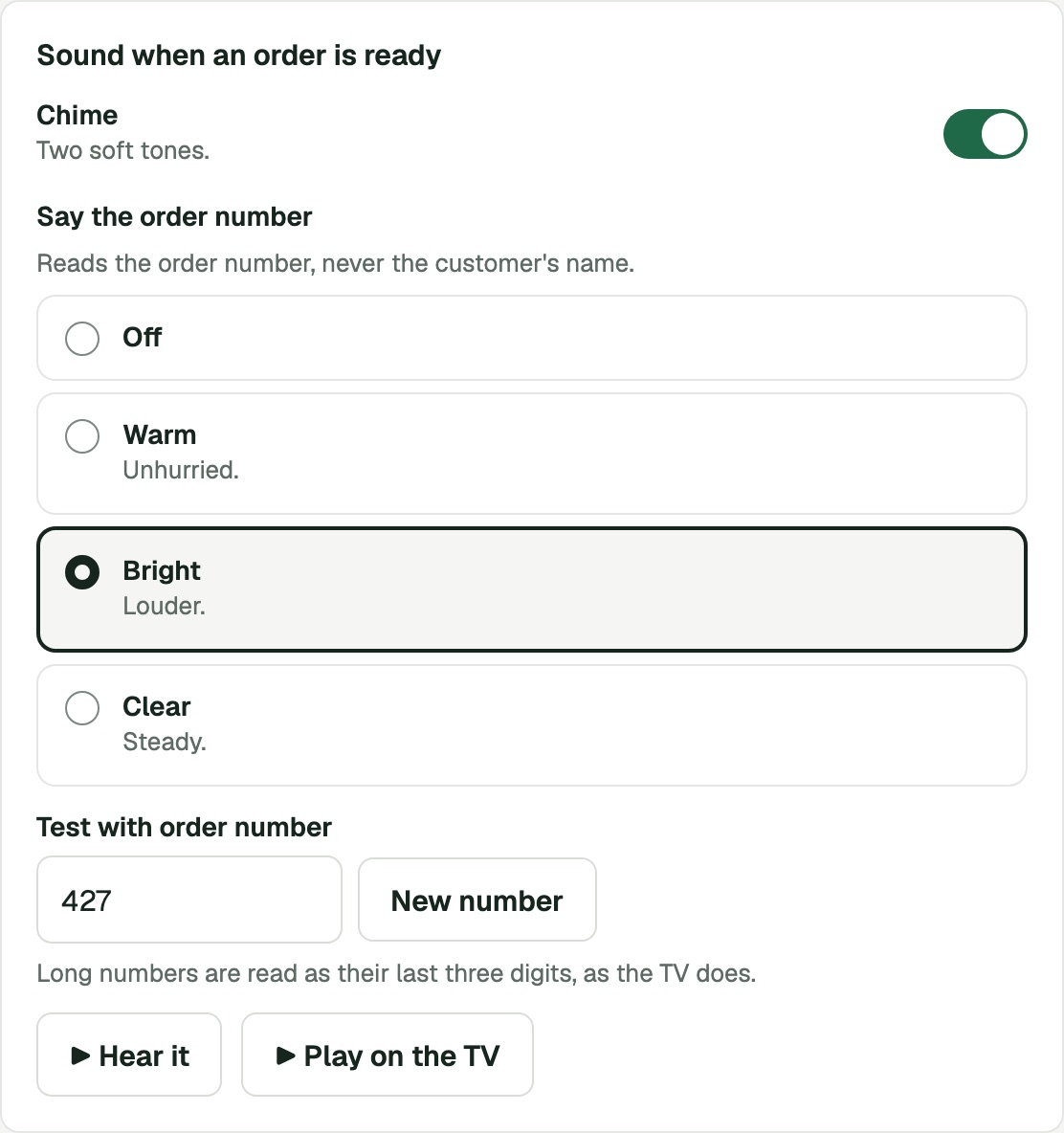
This TV chimes, then says the number in the Bright voice.
Test it on the TV
- Stand where you can hear the TV and click ▶ Play on the TV. The TV chimes and says the number in Test with order number, just as it will when an order moves to Ready for Pickup. Any number works. Click New number for another, or type your own.
- Your page shows a line like Front counter plays #427 now. That means the TV got the test. If the TV stays silent, see If you don't hear it.
Keep other TVs quiet
If two TVs call the same order, customers hear it twice, a second or two apart. Give the sound to one TV.
- Open each other TV's page. Its sound card shows what it plays now. On a phone, the Sound row says Off when it's quiet.
- If a TV plays a sound you didn't set, turn Chime off and set Say the order number to Off. This happens when a sound was set for every TV at once on the older Settings page.
What the TV says, and when
If you don't hear it
The page says it plays, but the TV is silent.
Check the TV's volume and mute, and that a soundbar is on the right input. If the board runs in the TV's web browser, press OK on the remote once after the board opens. Browsers stay silent until a button is pressed. The Pickup Signal app on a Fire TV Stick needs nothing.
The test plays, but real orders make no sound.
On the TV's page, check that Columns isn't set to Making only, that the TV shows a board with orders, and that Orders shown includes the order types you're testing.
There's no ▶ Play on the TV button.
A message shows where the button would be. If the TV is offline, turn it on and check its Wi-Fi. If the TV is running older software, turn the TV or its Fire TV Stick off and on again, then reload the page.
The page says the TV stays silent.
Chime and the voice are both off for that TV. Turn on Chime or pick a voice.
▶ Hear it makes no sound.
Check the volume on your computer or phone, and that the browser tab isn't muted. On an iPhone, turn off silent mode.