Guides · Setup · 2 min
Connect Clover to Pickup Signal
Do this once, on a computer. After that, orders rung up on your Clover appear on your pickup board by themselves. If someone else manages your Clover account, send them this page.
Before you start
- A computer signed in to your Clover web dashboard at clover.com, as an Admin.
- Your Pickup Signal account, with this shop added.
- About two minutes.
In Clover: make an API token
- Open your Clover web dashboard at clover.com.
- Click the gear icon at the top right. It has no label.
- Click View all settings.
- Under Business Operations, click API tokens.
Use API tokens under Business Operations. Clover also has Ecommerce API Tokens. Those are for online card payments and can't read your orders.
- The first time, Clover shows a welcome window. Click Get Started, then Allow when it asks for your location.
- Click Create new token and name it Pickup Signal.
- Tick Read on these four:
- Orders (required)
- Customers (puts names on tickets)
- Inventory (imports your menu)
- Merchant (your shop's name)
Leave every Write box empty, and leave Employees and Payments unticked.
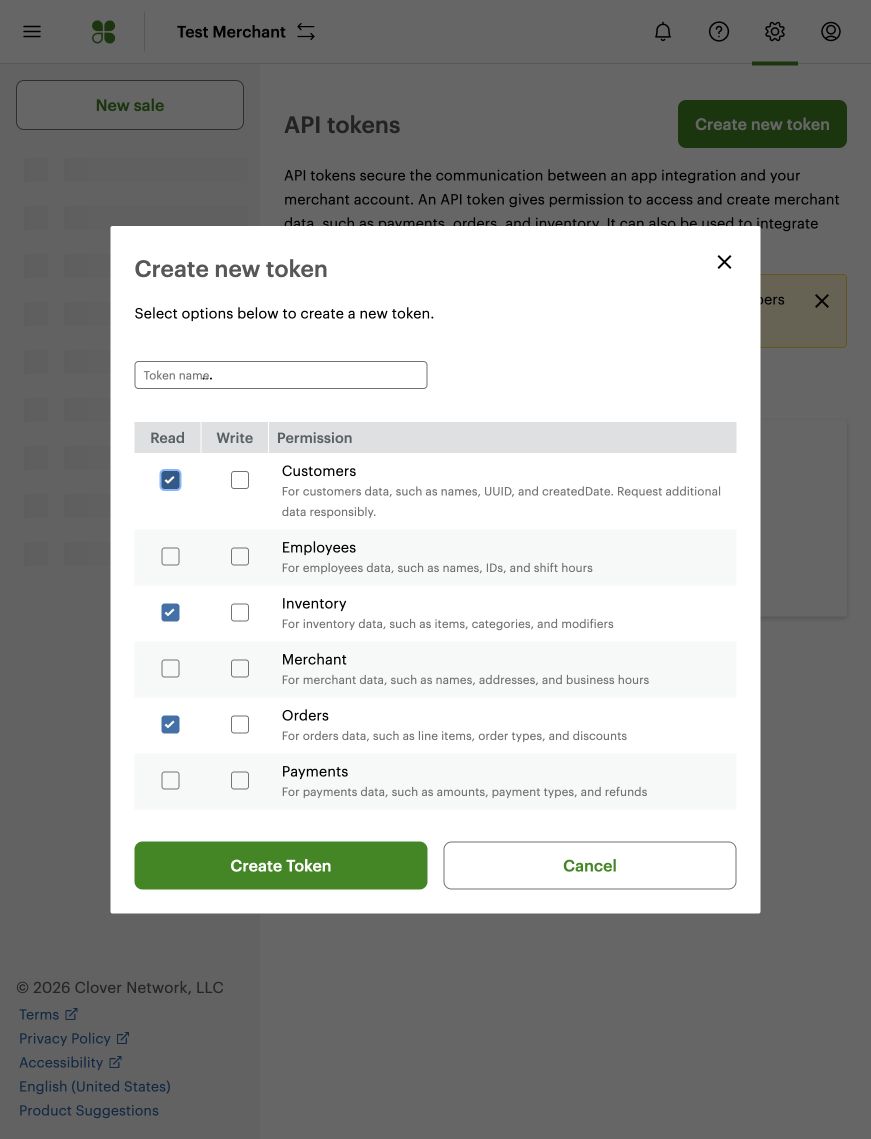
Clover's Create new token window. This picture leaves Merchant unticked; tick it too. The list above is the one to follow. - Click Create Token, then copy the token.
- Copy the whole address from your browser's address bar. Your Merchant ID is in it: the 13 characters after
/m/, as inclover.com/setupapp/m/1SBW…/api-tokens. You don't need to pick it out; Pickup Signal does.
In Pickup Signal: paste and test
- On your Pickup Signal dashboard, click Order sources on your shop. You can also click Connect register in the Getting live checklist.
- Click Clover.
- Paste the token into API token.
- Paste the Clover address into Clover address or merchant ID.
- Click Connect Clover.
- Ring up a test order on your Clover. It appears within about a minute, because Pickup Signal checks Clover every minute. When it shows up, everything works.
What reaches the board
- New orders, within about a minute.
- Edits to items and notes, and deleted orders, within about a minute.
- Orders with no customer name show their order number.
If you see an error
These are the messages Pickup Signal can show during setup, and what to do about each.
- Read isn't ticked on Orders. Make a new token with it ticked (steps 6 to 8) and paste that one.
- The key was made in a different Clover account. Sign in to the Clover merchant this shop uses, make the token there, and copy that address.
- Part of the key was left out when copying. Copy the token again, all of it.
Tick Read on Orders for the Pickup Signal token, or make a new token with it ticked, then click Try again.
Copy the address again from the Clover tab where you made the token, paste it, and click Try again.
Copy the address while you're on a Clover settings page, such as API tokens. The ID only appears once you're signed in.
One Clover merchant feeds one Pickup Signal shop. Disconnect Clover on the other shop (see below), then try again here. If that shop isn't in your account, email hello@pickupsignal.com.
On your dashboard, open the ··· menu on the shop, click Disconnect Square… and confirm. Then come back to Order sources.
Click Disconnect Square in that message, or use the ··· menu on your dashboard. Then connect Clover.
Nothing you pasted is wrong. Wait a minute and click Try again. The same goes for Couldn’t connect Clover just now. Try again in a minute.
Wait a few minutes before the next try.
Sign out of Pickup Signal and sign in with the account that added this shop.
This shows when the test order hasn't arrived after a while. Check that the order was saved on the Clover device. If it was, make a new token with Read ticked on Orders and paste it.
If your key stops working
If your dashboard says Clover stopped sending orders, the token was deleted or changed in Clover.
- Make a new token in Clover (steps 2 to 8).
- On your dashboard, click Paste a new key.
- Paste the token and the Clover address, then click Connect Clover.
Orders from the last 30 minutes catch up within a minute.
To disconnect
- In Pickup Signal: on your dashboard, open the ··· menu on the shop, click Disconnect Clover…, then Disconnect Clover. This deletes the token from Pickup Signal right away. Your board and TVs stay as they are, and staff can add orders by hand.
- In Clover: go back to API tokens (steps 2 to 4) and delete the Pickup Signal token. That ends access on Clover's side.
More guides: Guides · How to set up an order-ready TV in a coffee shop · TV & tablet setup